 Search the WinSPC Knowledgebase Search the WinSPC Knowledgebase |
 Browse by Category Browse by Category |
|
|
|
|
|
| How can I print or preview a report in WinSPC? |
|
Thank you for rating this answer.
|
There are many different ways in WinSPC to print or preview standard Reports Books and Report Templates:
- Administrator Tree's Right Click Menu
- Print Reports Button
- Variable Analyzer
- Attribute Analyzer (WinSPC 9.0 and above)
- Data Sets (WinSPC 9.0 and above)
- Command Line Switches
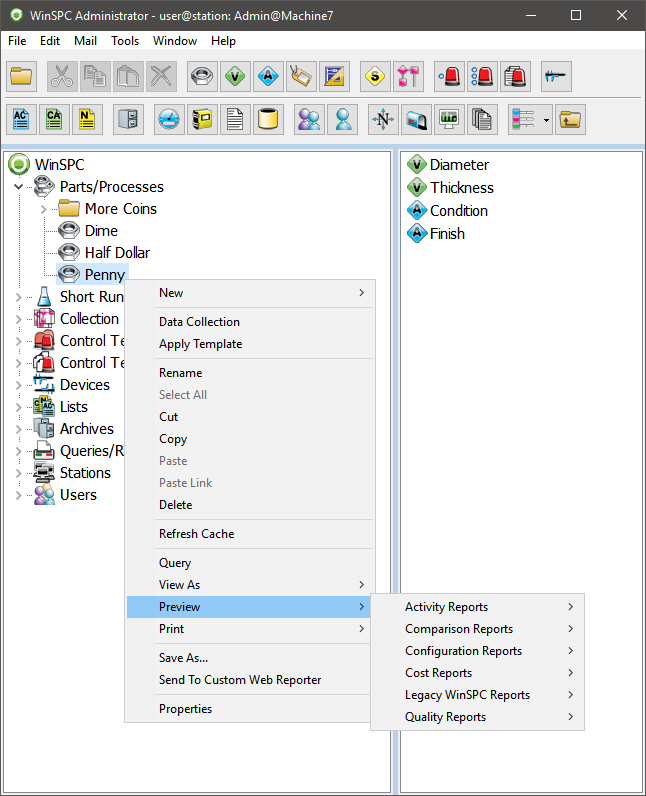
Reports can be accessed from the right-click menu of most WinSPC Administrator Tree objects, including:
- Parts/Processes
- Variables
- Attributes (WinSPC 9.0 and above)
- Collection Plans
- Data Sets
- Folders for all of the above objects
The right click menu allows the user to print or preview a specific Report Template. The template will use the selected object as the basis for the report (in other words, the output of the report is based on the data contained within the selected object).
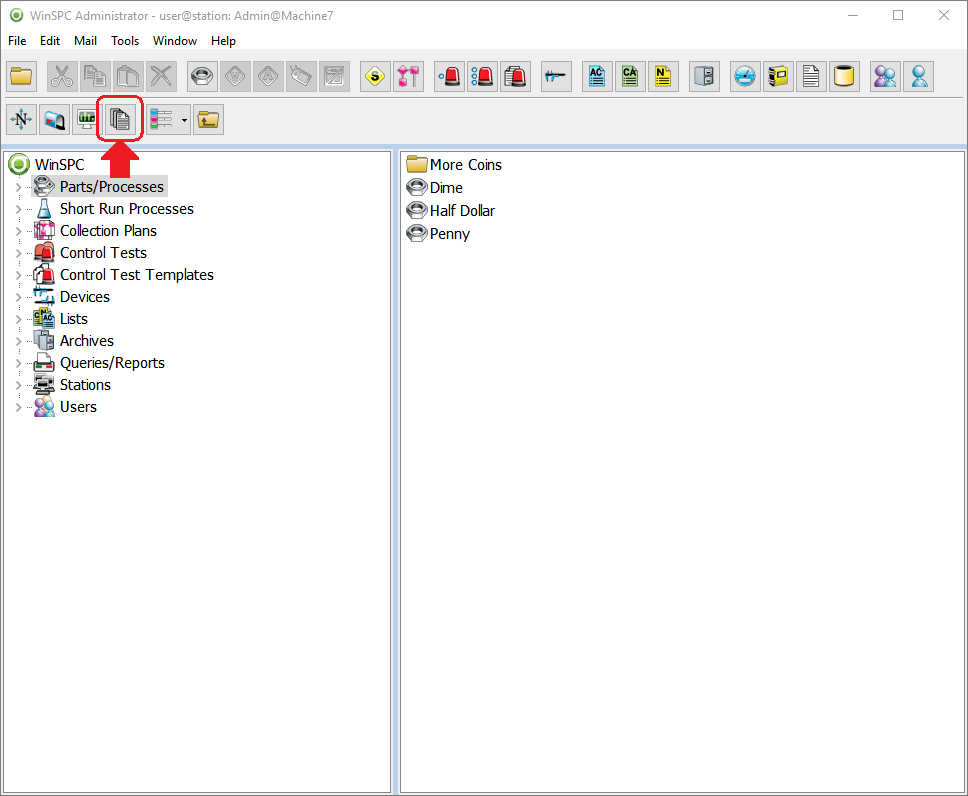
You can also access the "Print Reports" dialog from various locations in the software by clicking on the "Print Reports" button. Access to this button is controlled through WinSPC User Permissions and is available in the following locations:
- Administrator Window
- Navigator Window
- Data Collection Window
- Plant Monitor Window
- Legacy Query Tool (WinSPC 8 & 9)
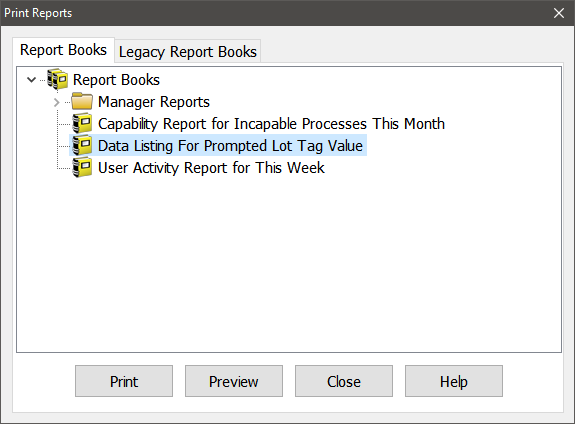
Clicking on this button prompts the user to pick an existing report book to print or preview.
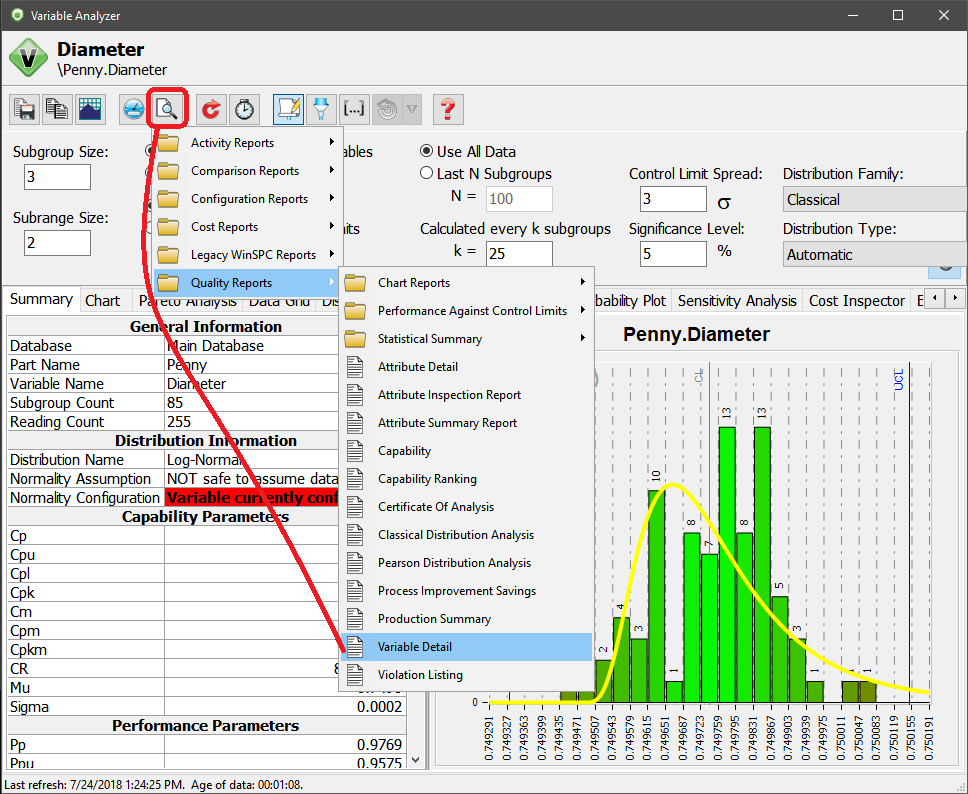
Reports can also be printed or previewed from within WinSPC's Analyzers (both Variable and Attribute). Clicking on the "Preview" button will allow you to pick a Report Template to use to preview using the data currently contained within that Analyzer window. Keep in mind you can filter your data in the Analyzers by clicking on the "Data Filter" button, the "Subgroup Range" button and/or the "Chart" tab's right-click zoom menu. Any active filters will used when generating the report you select from the "Preview" button.
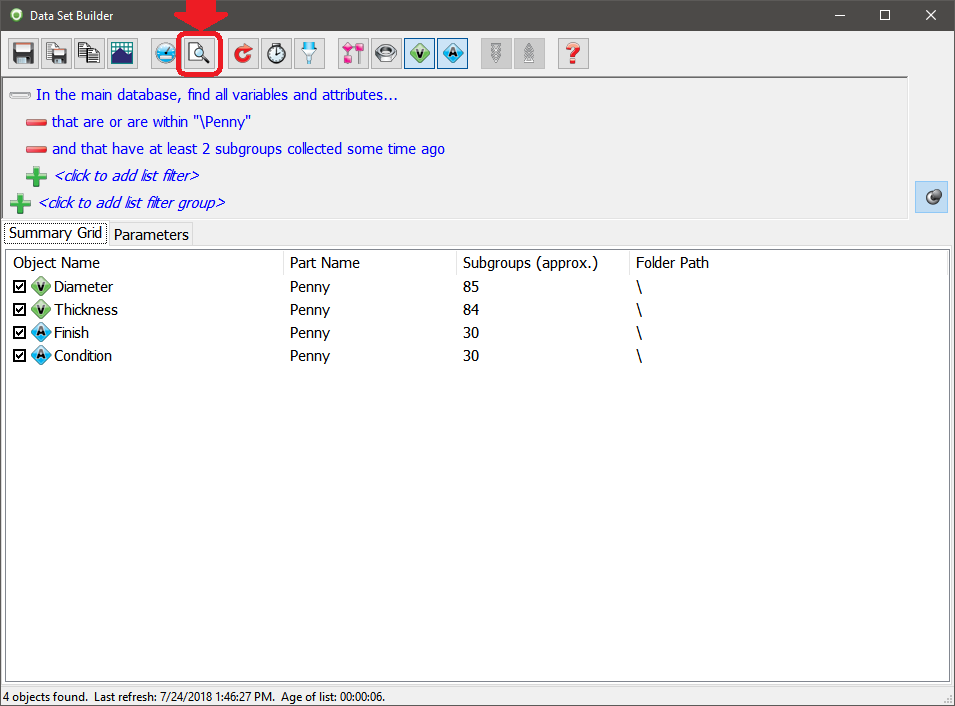
Similar to the Analyzers, Reports can be printed or previewed from within a WinSPC Data Set. The Data Set allows you to define criteria to pick which Parts/Processes, Variables, Attributes and/or Collection Plans are contained within that Data Set. Just like with the Analyzers, you can configure Data Filters, and then preview a report by clicking on the "Preview" button.
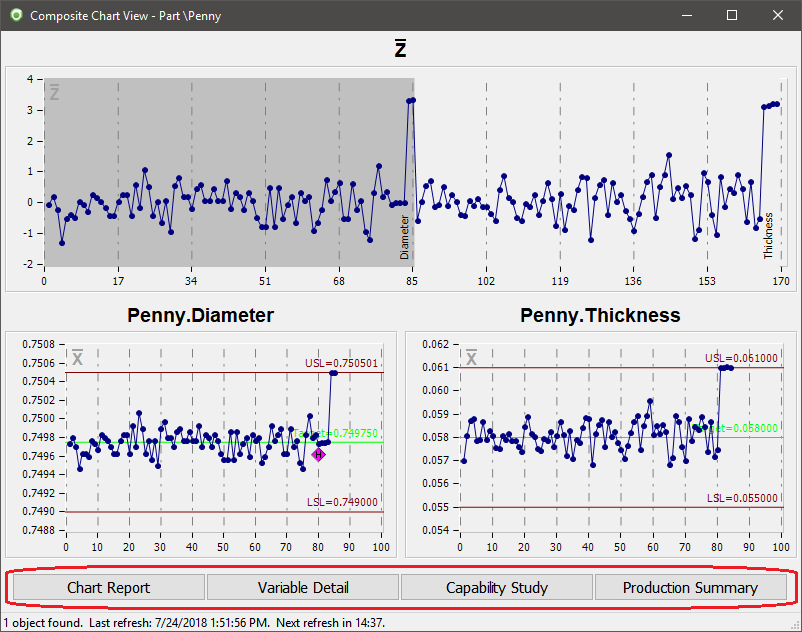
In WinSPC 9 and above, Dashboards can be configured to preview or email Reports. These Reports can be configured to be initiated though an event called an Action. Actions can be clicks, or statistical violations, or control test violations or timers.
Finally, Report Books can also be executed through command line switches. This allows you to setup an external scheduler, such as Windows' built in Task Scheduler tool, that would run a report book (and produce pdf or html output) on a periodic basis. For more information regarding executing a report book through a command line, see this knowledgebase article.
|
| Attachments |
|
No attachments were found.
|
| Visitor Comments |
-
Comment #1 (Posted by Nobuntu
)
How do I print or preview a report in WINSSPC. When I right click It does not give me that option of preview
-
Comment #2 (Posted by WinSPC Support
)
Access to the print and preview functionality can be controlled through permissions in WinSPC. If your user that you are logging into WinSPC has the "Global" > "Print/Preview" permission revoked, you will not have the print or preview options available.
In addition, the "Print/Preview" option is only available on certain objects in the tree (part folders, parts, variables, collection plan folders, and collection plans currently), so make sure you are right clicking on one of these object types.
Please also note this feature was added in WinSPC 8.0.0, so you will need to be on WinSPC 8.0.0 or later to have this option.
-
Comment #3 (Posted by Karl
)
When I create a report and pick the date range type "explicit", I enter the date that I want to report data from and it pulls all the data from that item number and completely ignores the fact that I only want that one particular date. How do I fix this?
|


 The article has been updated successfully.


